
Designs Studio For Cut Machine
Coloring LazeArt & Design
3.890.00 Reviews
- Version
- 1.0.38
- Installs
- 50.00K
- Age Rating
- Everyone
Screenshots
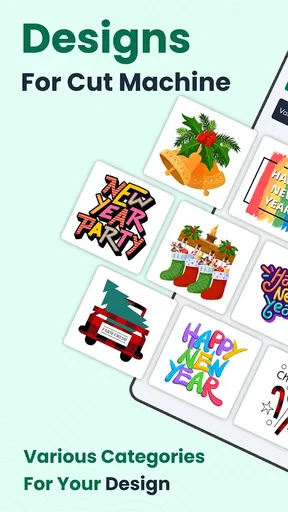
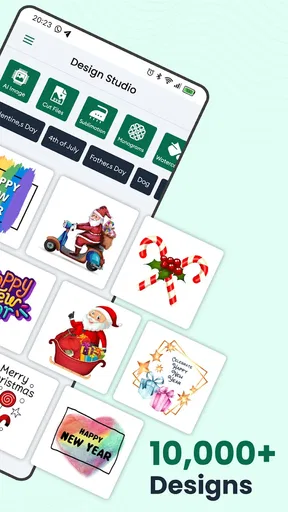
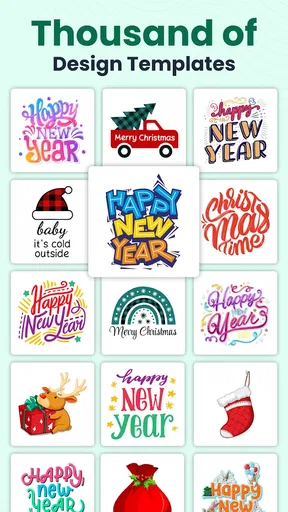
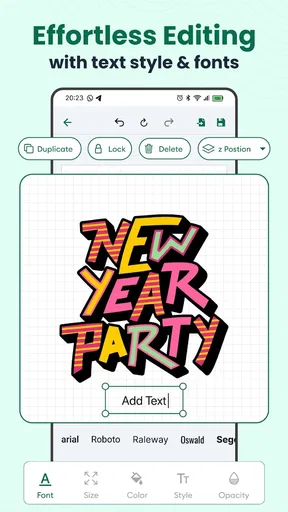
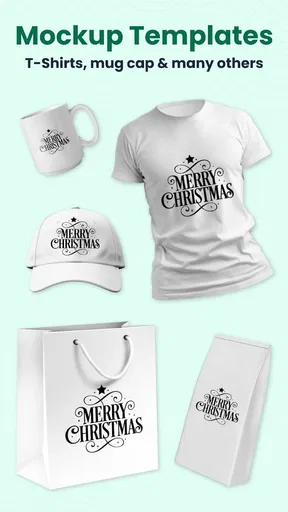
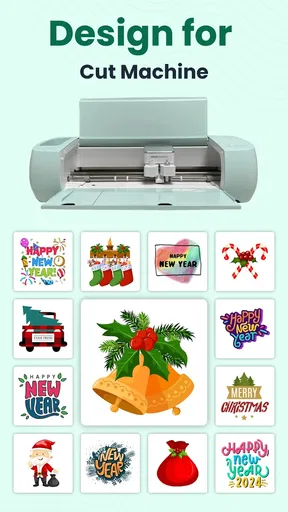
Our Review of Designs Studio For Cut Machine
 Analysis by Appyee
When I first open a craft-design app, I want one simple thing: a clear route from an idea to a usable design, without needing to learn a complicated desktop program first. Designs Studio For Cut Machine is aimed at that kind of project work. It sits in the art and design space, with an emphasis on SVG cut files, fonts, shapes, stickers, and monogram-style creations. I’d approach it as a starting point for preparing craft artwork, rather than assuming it will replace every tool in a maker’s workflow.
What to expect before you start
The app is free to install, and it is made by Coloring Laze. It has a 3.8 average from around 700 ratings, with over 50,000 installs. That gives a newcomer some context: people are using it, but the rating also suggests that the experience may not be equally smooth for everyone. Its content rating is Everyone, so the intended audience is broad, though the practical appeal is strongest for people who enjoy making and customizing designs.
The main idea is to give you a collection of visual building blocks to work with. In practice, that makes the app most appealing if you want to personalize a small project—perhaps a label, a name design, or a decorative shape—rather than build a complex illustration from a blank page. A library can help you get past the intimidating empty canvas, but it also means your result may need thoughtful editing to feel personal instead of template-led.
I’d also keep the purchase model in mind before getting absorbed in a project. The app is free, while in-app purchases range from $4.99 to $29.99 per item. That doesn’t automatically make it a poor choice, but it does make it sensible to explore the free experience first and decide whether the available tools and materials suit your needs before paying for anything.
Getting to Know the App
First things first, let’s talk about what Designs Studio For Cut Machine actually offers. This app is like a digital playground for anyone who loves crafting, whether you’re a seasoned pro or just getting started. It’s jam-packed with features that allow you to create intricate designs, customize templates, and even connect directly to your cutting machine.
Installing the app was a breeze. Available on both Android and iOS, it took just a few taps to get it up and running. Once inside, you’re greeted by a user-friendly interface that’s as intuitive as it is inviting. I found myself navigating through the menus with ease, which is always a plus when you’re eager to dive into a new project.
Make your first design a small test
For a first session, I’d choose a simple name or shape and treat it as a practice run. Browse for a starting point, make one or two deliberate changes, then pause to inspect the result before moving on. That small loop—select, edit, review—is more useful than trying to build an elaborate layered composition immediately. It helps you learn where the app’s controls are and whether its design approach fits the way you like to work.
If your goal is to make something physical, think through the whole job before you spend time polishing details. A design that looks appealing on a phone still has to make sense as a cut file: delicate details may be harder to handle than bold shapes, and crowded elements can be difficult to separate cleanly. I’d start with a design that has clear outlines and a modest number of parts, then make it more ambitious once you understand how your chosen workflow behaves.
Features That Spark Creativity
Let’s dive into the features, because this is where the app truly shines. One of the standout elements is the extensive library of templates and designs. Whether you’re into scrapbooking, vinyl decals, or custom apparel, there’s something here for everyone. The templates are fully customizable, allowing you to tweak colors, shapes, and sizes to your heart’s content.
Another feature that caught my eye is the layering tool. It’s perfect for those multi-dimensional projects that require a bit more finesse. The tool is robust but doesn’t feel overwhelming, which is great news for beginners. Plus, the app supports a variety of file formats, making it easy to import your own designs or export finished projects.
When a design has several pieces, I find it helps to make the layer plan before decorating. Decide which elements need to sit together and which should stay separate, then use the layering controls with that structure in mind. This is a practical way to avoid ending up with a pretty screen composition that is awkward to assemble. For a first layered project, a simple two-color motif is a better test than a detailed image with many tiny components.
The app’s assortment of fonts and monogram-oriented materials points to another useful workflow: make a design feel specific through wording rather than adding lots of decorative parts. For a gift tag or storage label, for example, one well-chosen name can do more than a crowded arrangement of shapes. I’d try the text-led approach when I want a quick personal touch, and save detailed layering for a project where the extra work will be visible.
And let's not forget about the direct integration with cutting machines. This feature is a game-changer. With just a few clicks, you can send your designs straight from the app to your machine, cutting down on prep time and letting you focus on the fun stuff – creating!
Where it fits among craft-design tools
Compared with starting in a general drawing app, a cut-focused design space is more directly relevant when the end goal is a physical craft. You can spend less time translating an illustration into a project idea and more time adapting shapes, lettering, and layout. The trade-off is that a broad illustration app may offer a more natural place to sketch original artwork, while a dedicated desktop editor can suit people who need precise control over complicated files. I’d choose this app for approachable, craft-oriented customization, not as my only tool for every kind of graphic design.
It is also worth separating the design step from the making step. Direct machine integration can shorten the handoff, but it does not remove the need to check that the design is suitable for the material and project you have in mind. Before committing to a full piece, inspect the layout and consider a small test cut if that is part of your usual process. That extra check is especially useful when you have changed sizing or have several layers to align.
Ease of Use
One of the things I really appreciate about this app is how accessible it is. The developers have clearly put a lot of thought into making it user-friendly. The layout is clean, the icons are self-explanatory, and the tutorials are incredibly helpful. Even if you’re not tech-savvy, you’ll find that getting the hang of things is straightforward.
For someone installing it for the first time, I’d avoid trying to learn every tool in one sitting. Pick a single outcome—such as making a small decorative shape or a simple personalized label—and follow the relevant tutorial as you go. Then save time to review the finished layout with fresh eyes. That approach makes the first session feel manageable and gives you a clear result to judge, rather than a long tour of controls with nothing finished at the end.
One common point of confusion with design apps is the difference between what looks good on screen and what is ready for a craft machine. Color can help you understand the composition, but the physical result depends on how the design is separated and handled in the next step. I’d pay attention to outlines, overlaps, and small details rather than relying on color alone to judge whether a design will be easy to make.
And if you ever find yourself stuck, the community support is top-notch. There are tons of forums and user groups where you can ask questions, share tips, and get feedback on your work. It’s like having a whole team of fellow crafters cheering you on!
A realistic first project—and the people it suits
Imagine you need a few matching labels for jars or craft boxes before a busy weekend. I’d use the app to explore a simple shape, add clear lettering, and keep the layout consistent across the set. Rather than making each label from scratch, I’d settle on one design and adapt its wording. That keeps the task practical and gives you a chance to learn the editing workflow on a project where a small imperfection is not a disaster.
This kind of app is a good fit for a beginner who wants a guided way into cut-oriented design, or for an occasional crafter who values ready-made starting points and personalization. It may also suit an experienced maker who wants to try a quick idea on a phone before doing more exacting work elsewhere. I’d skip it if you mainly want freehand illustration, professional-level precision, or a workflow built around complex original artwork; a dedicated drawing or desktop design tool is likely to feel more appropriate for those needs.
Another trade-off is the balance between convenience and control. Starting from a template can save time, but it can also encourage you to accept a layout before checking whether it is truly right for your material or intended use. I’d treat templates as editable scaffolding: change the wording, simplify a busy arrangement, or remove a detail that would be awkward to cut. The best result is often the version you have made easier to produce, not the most elaborate one on screen.
Why You’ll Love It
So, why should you give Designs Studio For Cut Machine a try? Well, if you’re someone who loves to create, this app is a dream come true. It simplifies the design process without sacrificing creativity. The range of features means you can tackle any project you can think of, from simple stickers to complex layered artworks.
Plus, the convenience factor is off the charts. Being able to design on the go and send projects directly to your cutting machine is incredibly liberating. Whether you’re working from your kitchen table or your favorite coffee shop, your creative potential is limitless.
I’d be more measured about that convenience if I were planning a project with tight alignment or many fine elements. A phone is handy for choosing a template and making quick edits, but a larger screen can make it easier to judge spacing and detail. If a design matters enough that a small layout mistake would waste material, I’d take the time to inspect it carefully before sending it onward rather than assuming a quick mobile edit is all the checking it needs.
The app is currently at version 1.0.38 and runs on Android 9 or later. If you’re choosing whether to install it on an older device, check that your operating system meets that requirement first. For a first-time user, the more important question is whether you already have a clear small project to try: a simple test gives you a better sense of the app than browsing a library without a purpose.
Final Thoughts
All in all, Designs Studio For Cut Machine is a fantastic tool for anyone looking to dive into the world of crafting and design. It’s packed with features that cater to both beginners and experts, making it a versatile choice for a wide range of projects.
My recommendation is to begin with one modest design, learn how the templates and layers behave, and only then decide whether the paid items are worth considering for your own projects. That answers the practical first question—can I get from an idea to something I can use?—without asking you to commit to a bigger workflow before you know it suits you.
So, if you’re ready to unleash your creativity and bring your ideas to life, why not give this app a try? Happy crafting!
Verdict
Strengths of Designs Studio For Cut Machine
- User-friendly interface for beginners.
- Extensive library of design templates.
- Seamless integration with cutting machines.
- Regular updates with new features.
- Supports multiple file formats.
Limitations of Designs Studio For Cut Machine
- Requires a stable internet connection.
- Limited free design options available.
- Some features locked behind paywall.
- Occasional bugs in software updates.
- Higher learning curve for advanced tools.
Similar Picks in This Category
View All
Canva: AI Photo & Video Editor
Canva4.8

PENUP – Drawing-sharing SNS
Samsung Electronics Co., Ltd.4.5

Crafto
Kutumb App4.6

Sketchbook
Sketchbook4.1

ibis Paint X
ibis inc.4.5

Adobe Express: AI Photo, Video
Adobe4.6
Frequently Asked Questions
What is Designs Studio For Cut Machine used for?
Designs Studio For Cut Machine is a versatile app designed for crafting enthusiasts who use cutting machines like Cricut or Silhouette. It offers a wide range of templates, fonts, and graphic elements that allow users to create custom designs for projects such as vinyl cutting, scrapbooking, and more. The app is perfect for both beginners and experienced crafters.
Is Designs Studio For Cut Machine compatible with all cutting machines?
While Designs Studio For Cut Machine is compatible with popular cutting machines like Cricut and Silhouette, it is advisable to check the app's specifications and your machine's compatibility. Some advanced features may only work with specific models, so verifying compatibility will ensure that you can make full use of the app's capabilities.
Does Designs Studio For Cut Machine offer a free version?
Yes, Designs Studio For Cut Machine offers a free version with basic features. However, to access premium templates, advanced design tools, and a broader selection of fonts and graphics, you may need to purchase a subscription or make in-app purchases. The free version is ideal for trying out the app before committing to any payments.
Can I use my own images and designs with Designs Studio For Cut Machine?
Absolutely! Designs Studio For Cut Machine allows users to upload their own images and designs. This feature is perfect for those who want to incorporate personal photos or unique graphics into their projects. The app supports various file formats, making it easy to integrate your custom designs seamlessly.
How user-friendly is Designs Studio For Cut Machine for beginners?
Designs Studio For Cut Machine is designed with user-friendliness in mind, featuring an intuitive interface and easy-to-follow tutorials. Beginners will find the step-by-step guides and templates helpful in navigating the app. Additionally, the app's community and customer support are available to assist with any questions or challenges users may encounter.
